
Set up HypAware for your team
Get an organization in HypAware Cloud, then set up each machine to join it.
Get an organization
Organizations live in HypAware Cloud and are keyed by email domain: anyone who signs in with a verified email on your claimed domain joins your organization automatically.
You don't need an organization to start: one person can run the setup below and sync their own machines. To put more than one person in an organization, contact us and we will set one up for your domain. There is no self-serve invite yet.
Run the setup
HypAware requires Node 22.12 or newer. Run:
npm i -g hypaware
hyp setup
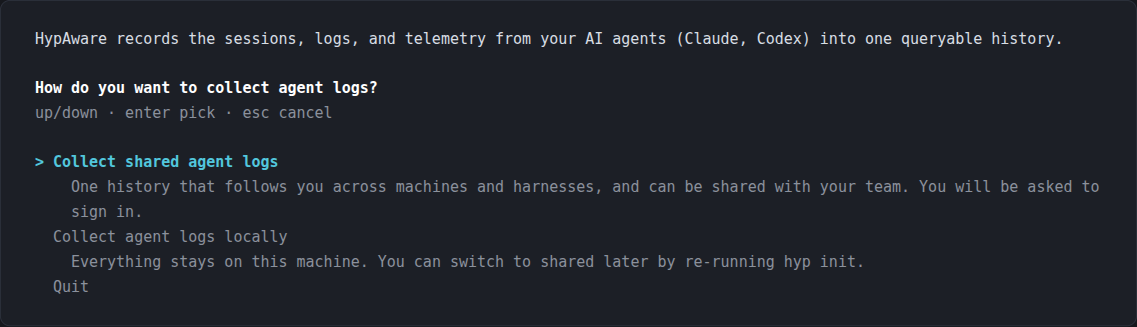
This opens a guided setup. The first question is how you want to collect agent logs. Select Sync to the cloud (it is already selected, so a bare enter takes it).
Follow the prompts
The setup guides you through the remaining steps and reports what it is doing at each one:
- Sign in. A browser window opens for sign-in with your work email. This completes enrollment: your organization is identified from your email address, so there are no codes or keys to enter.
- Set up recording. One question with two answers. Record and sync everything takes the default answer to every remaining question: the setup names the tools it is about to configure, then states what it will record, what will sync to your team, and how new folders are handled, and continues without stopping again. Customize asks you those two questions instead, one screen at a time (see below).
- Complete any additional setup. A tool whose adapter needs one more step asks for it here, and you may defer any of them; the remaining setup continues. No tool shipped today asks for one, so on a stock install this step passes silently. Claude Desktop is now a regular collection choice: selecting it schedules transcript imports and performs no additional app setup.
If you choose Customize
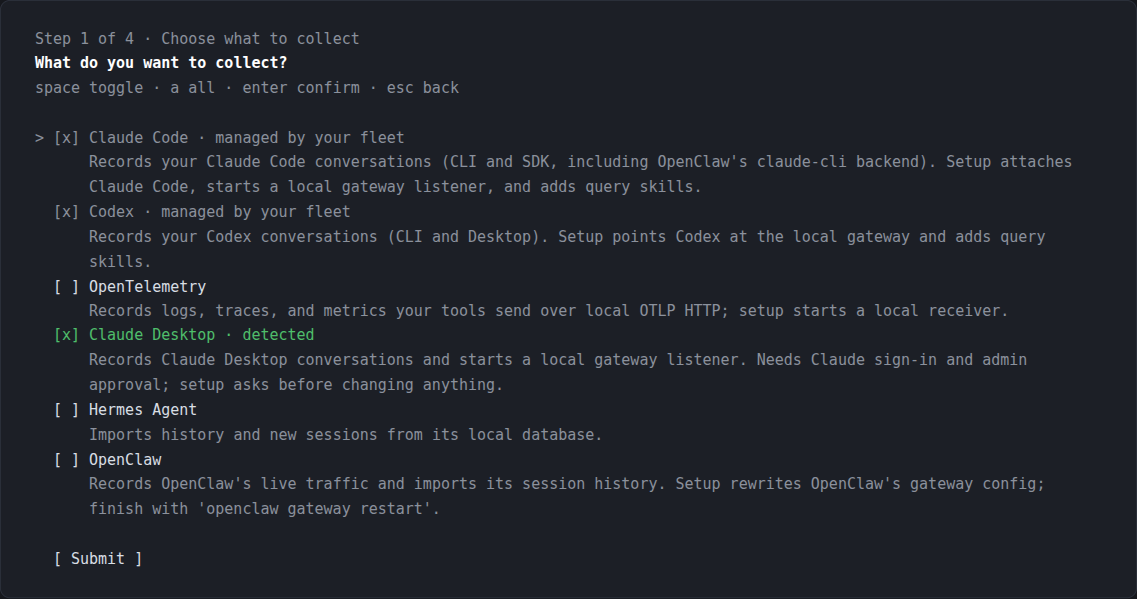
Two screens, in order, each with the same answer already selected that Record and sync everything would have taken. A bare enter accepts what is on the screen, so inspecting everything and changing nothing is one keypress per screen.
- Choose what to collect and sync. A checklist of AI tools. Tools your
team manages are already selected and locked; tools detected on your
machine are pre-selected as well. A checked tool is recorded here and
shared with HypAware Cloud. Completing setup clears any
standing
hyp privacy client <name> local-onlyfor the tools on it; cancelling before setup commits preserves those settings.hyp privacy clientchanges them afterwards. - Choose how new folders are handled. Whether recording in a project
you have not worked in before syncs without asking, or asks you the
first time. This is a standing preference;
hyp privacy folderschanges it later.
After the questions
Both answers arrive here, so this applies whichever one you gave.
The setup then installs the components, imports your recent AI history, and reports when the first upload will occur.
Nothing is uploaded immediately. The first upload is held until tonight, leaving a window to review what will be shared. Before then, run the
hypaware-privacyskill to see what would be shared and keep any private material off the record. See what HypAware records and how to control it.
Verify the setup
hyp status
This reports whether recording is active, what is shared with your team
versus kept on your machine, and any pending upload deadline. To disconnect
and undo the setup, run hyp leave.
Explore what was recorded
Because setup imports your recent history, there is data to query immediately. Start with the overview: sessions, tools, models, and tokens over recent activity.
hyp query overview
Or ask a question in plain language:
hyp ask "From my HypAware history, which tools failed most often this week?"
Two SQL queries to go further:
# Which providers and models you use, by volume
hyp query sql "select provider, model, count(*) n from ai_gateway_messages group by 1,2 order by n desc"

# Sessions and message parts per day, most recent first
hyp query sql "select date, count(distinct session_id) sessions, count(*) parts from ai_gateway_messages group by 1 order by 1 desc limit 14"