
OpenRouter Broadcast
Connect OpenRouter to HypAware to see your workspace's model requests in Sessions and their token usage in Usage. OpenRouter sends traces directly to your HypAware server. Collection starts with new requests once you save the destination. There is no client software to install or history import to run.
1. Create a credential in HypScope
You'll need a verified OpenRouter account with access to the workspace's Observability settings. For an organization workspace, sign in as an OpenRouter org admin. In HypScope, sign in as an admin of the organization that should receive the traces. If you host HypAware yourself, your server must have OpenRouter ingestion deployed and be reachable from OpenRouter over public HTTPS.
- Open Service accounts in HypScope and choose Connect OpenRouter.
- Under Service account, select Create a new service account, then Create account and auth token. Give the account a recognizable name and choose Create account. To use an existing account, select an enabled one and choose Create OpenRouter auth token.
- Enter an Auth token name that identifies this destination, such as
OpenRouter production, and choose Create auth token. - Keep the dialog open. You'll use Copy endpoint and Copy headers in the next step. HypScope shows the secret only once. If you close the dialog before copying it, revoke the unused token and create a replacement.
The headers contain a HypAware service-account token. It can submit LLM logs and query your organization until revoked. Paste it only into the intended destination. Your OpenRouter API key stays with the application that makes model requests.
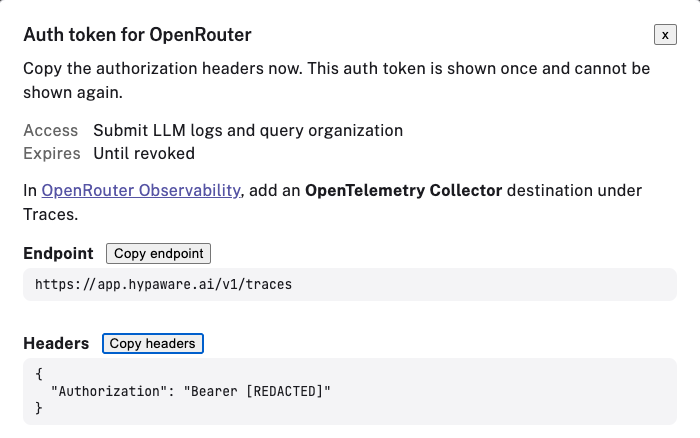
2. Configure the OpenRouter destination
- In a second tab, open OpenRouter Settings > Observability in the workspace that owns your application's API key. Enable Broadcast. Under Traces, open the editor for OpenTelemetry Collector.
- Paste the full Endpoint from HypScope, including
/v1/traces. For hosted HypAware it ishttps://app.hypaware.ai/v1/traces. Paste the complete JSON object from Copy headers into Headers. Leave Send OTLP metrics off. HypAware reads usage from the trace itself. - Select the API key you will use for verification. An empty include list allows all workspace keys, and an excluded key is always skipped. Set sampling to 1.0 (100%) for setup. You can lower it later. With a session ID, OpenRouter samples all requests in that session together.
- Turn on Privacy Mode if you want usage without prompt or response text. OpenRouter still sends model, timing, reported tokens and cost, as well as custom metadata. Keep sensitive text out of metadata. With Privacy Mode off, exported inputs and outputs can appear in Sessions.
- Optionally enable Cost allocation. HypAware can record a USD cost when OpenRouter supplies a reconciled breakdown whose line items add up to the charge. A request can have token usage with no priced cost. A missing cost does not mean the request was free.
3. Test the connection and save it
- Choose Test Connection. Success means OpenRouter reached the endpoint and HypAware accepted the credential. This check sends no model request and creates no session.
- Choose Send Trace to send OpenRouter's built-in sample. Seeing that sample in HypScope confirms delivery and storage. It can contain canned prompt and response text even with Privacy Mode selected.
- Save the destination and make sure it is enabled. Once the headers are saved, choose Done in HypScope. Keep the setup page open for the receipt check.
4. Verify a real request in Sessions and Usage
Make a chat request through your application's OpenRouter client using the selected API key and a model available to your workspace. Use a harmless prompt like
Reply with the word maple.Set the request body'ssession_idto a unique value such assetup-check-nov19-01, or send that value in thex-session-idheader. Note the time and model.For example, with your selected OpenRouter key in
OPENROUTER_API_KEY, replaceMODEL_IDwith an available model ID and send one request:Terminalcurl --fail-with-body https://openrouter.ai/api/v1/chat/completions \ -H "Authorization: Bearer $OPENROUTER_API_KEY" \ -H 'Content-Type: application/json' \ -d '{ "model": "MODEL_ID", "session_id": "setup-check-nov19-01", "messages": [{"role": "user", "content": "Reply with the word maple."}] }'A completion confirms the model answered. The next steps check whether HypAware received that same request.
In HypScope, choose Check again if the setup page has stopped checking. Receiving OpenRouter requests means HypAware stored a record using this new token. The sample can trigger that message too. Choose View collected sessions, open the session for your test call and match the time and model to the request you just made.
Open the request. With Privacy Mode on, look for OpenRouter did not export message content and check that usage is present while the prompt and response text are absent. This verifies what HypScope stored for your real call. Privacy Mode controls what OpenRouter sends to this destination. Model-provider retention is a separate setting.
Under Service accounts, open the account and choose View usage. Use a date range that includes your test and check the model and tokens. View sessions on the same account takes you back to its requests.
Send a second request with the same session ID to see the calls grouped under one session for that service account. Each call keeps its own exported input snapshot and response. If your application resends conversation history, earlier messages can appear in both snapshots. Without a session ID, HypAware groups by trace ID. Broadcast sees what reached the model. It cannot tell you which tools ran on the client, which local files changed, or what was committed to git.
If the sample appears but your request does not, check that you saved and enabled the destination in the same workspace as the calling key. Recheck the key filters and sampling, then send a new request. If Test Connection fails, check the full HTTPS URL and the copied headers, and confirm the account and token are still active.
Stop collecting
- To pause this destination, disable it under Traces in OpenRouter.
- To invalidate its credential, open the service account in HypScope, find the named auth token, choose Revoke, then confirm Revoke auth token. Other tokens on the account keep working.
- To retire the whole account, choose Disable account and confirm. This permanently disables the account and stops all its tokens on their next request. Previously collected sessions and usage remain available.
For more about destination settings, see OpenRouter's OpenTelemetry Collector guide and Broadcast options.